Elasticsearch + Kibana Log Analytics ฉบับสมบูรณ์ 2026
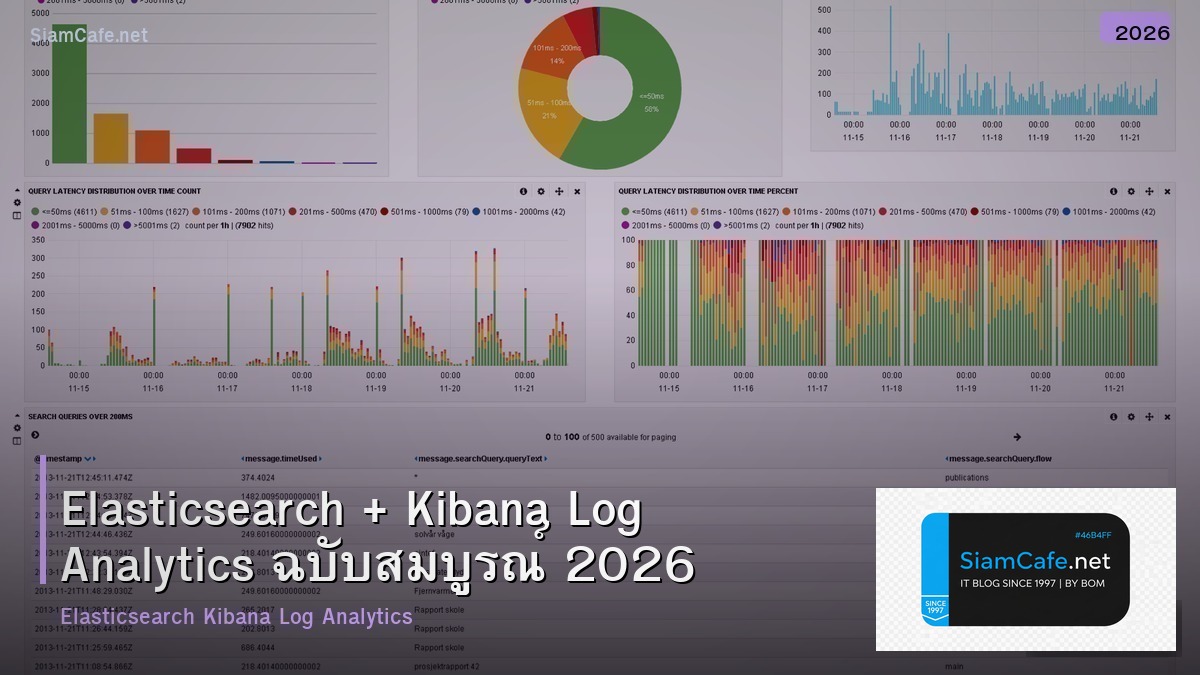
ในยุคที่ทุกองค์กรมี server หลายสิบจนถึงหลายร้อยเครื่องการ SSH เข้าไปอ่าน log ทีละเครื่องไม่ใช่วิธีที่ยั่งยืน Elasticsearch คือ search engine ที่ออกแบบมาสำหรับการจัดเก็บและค้นหาข้อมูลขนาดใหญ่โดยเฉพาะเมื่อรวมกับ Kibana ที่เป็น visualization layer และ Filebeat ที่เป็น log shipper คุณจะได้ระบบ log analytics ที่ทรงพลังที่สุดตัวหนึ่งในโลก open source
วิดีโอประกอบการเรียนรู้ | YouTube @icafefx
บทความนี้จะพาคุณติดตั้ง Elasticsearch + Kibana + Filebeat ตั้งแต่เริ่มต้นบน Ubuntu 22.04/24.04 พร้อม configuration ที่ปลอดภัยและเหมาะสำหรับ production รวมถึงการสร้าง dashboard วิเคราะห์ log แบบ real-time ที่ใช้งานได้จริงในองค์กรครับ
1. สถาปัตยกรรม ELK Stack

ELK Stack ประกอบด้วยสามส่วนหลักส่วนแรกคือ Elasticsearch ที่ทำหน้าที่เป็น search engine และ data store จัดเก็บ log ทั้งหมดใน index ที่สามารถค้นหาได้ภายในมิลลิวินาทีส่วนที่สองคือ Logstash หรือ Filebeat ที่ทำหน้าที่รวบรวม log จาก source ต่างๆแล้วส่งเข้า Elasticsearch และส่วนที่สามคือ Kibana ที่เป็น web interface สำหรับสร้าง visualization และ dashboard
สำหรับ architecture ที่แนะนำในองค์กรขนาดกลางให้ใช้ Filebeat ติดตั้งบน application server ทุกเครื่องเพื่อส่ง log ไปที่ Logstash server กลางจากนั้น Logstash จะ parse, filter และ enrich data ก่อนส่งเข้า Elasticsearch cluster ที่มีอย่างน้อย 3 node สำหรับ high availability และ Kibana จะเชื่อมต่อกับ Elasticsearch เพื่อแสดงผลการออกแบบแบบนี้ช่วยให้แต่ละ component สามารถ scale ได้อิสระตามภาระงานครับ
ข้อดีของ Elasticsearch เทียบกับ Splunk และ Graylog
เมื่อเทียบกับ Splunk ที่เป็น commercial product ราคาแพงมาก Elasticsearch ให้ความสามารถใกล้เคียงกันในด้าน search performance แต่ไม่มีค่า license ส่วน Graylog เป็นทางเลือกที่ดีแต่ ecosystem ของ plugin และ integration ยังไม่กว้างเท่า Elastic Stack ที่มี community ขนาดใหญ่และ Beats หลากหลายตัวเช่น Metricbeat, Packetbeat, Auditbeat ที่ครอบคลุมทุกความต้องการในการเก็บ telemetry data
2. ข้อกำหนดเบื้องต้น
ก่อนเริ่มติดตั้งให้เตรียมสิ่งต่อไปนี้สำหรับ Elasticsearch node แนะนำ CPU 4 cores ขึ้นไป RAM 16GB และ SSD อย่างน้อย 200GB สำหรับ Kibana ใช้ CPU 2 cores RAM 4GB ก็เพียงพอส่วน Filebeat นั้นเบามากใช้ RAM แค่ 50-100MB ติดตั้งบน server ที่มีอยู่แล้วได้เลย
# อัพเดทระบบ

sudo apt update && sudo apt upgrade -y


# ติดตั้ง dependencies

sudo apt install -y apt-transport-https curl gnupg2


# เพิ่ม Elastic GPG key

curl -fsSL https://artifacts.elastic.co/GPG-KEY-elasticsearch | sudo gpg --dearmor -o /usr/share/keyrings/elastic.gpg


# เพิ่ม Elastic repository

echo "deb [signed-by=/usr/share/keyrings/elastic.gpg] https://artifacts.elastic.co/packages/8.x/apt stable main" | sudo tee /etc/apt/sources.list.d/elastic-8.x.list


sudo apt update
ตั้งค่า system parameters ที่ Elasticsearch ต้องการค่า vm.max_map_count ต้องเป็น 262144 ขึ้นไปถ้าไม่ตั้ง Elasticsearch จะไม่สามารถ start ได้ครับ
# ตั้งค่า kernel parameters

echo "vm.max_map_count=262144" | sudo tee -a /etc/sysctl.conf

sudo sysctl -p


# ตั้งค่า file descriptor limits

cat << 'EOF' | sudo tee /etc/security/limits.d/elasticsearch.conf

elasticsearch soft nofile 65536

elasticsearch hard nofile 65536

elasticsearch soft memlock unlimited

elasticsearch hard memlock unlimited

EOF
3. ติดตั้ง Elasticsearch
Elasticsearch 8.x มาพร้อมกับ security ที่เปิดใช้งานโดย default ซึ่งต่างจาก version 7.x ที่ต้องตั้งค่าเองระบบจะ generate password สำหรับ elastic user อัตโนมัติเมื่อติดตั้งเสร็จให้จดเก็บไว้ให้ดีครับ
# ติดตั้ง Elasticsearch

sudo apt install -y elasticsearch


# password จะแสดงตอน install เก็บไว้ให้ดี

# หรือ reset ด้วยคำสั่ง:

sudo /usr/share/elasticsearch/bin/elasticsearch-reset-password -u elastic


# เปิด service

sudo systemctl daemon-reload

sudo systemctl enable elasticsearch

sudo systemctl start elasticsearch


# ตรวจสอบ

curl -k -u elastic:YOUR_PASSWORD https://localhost:9200
ถ้าทุกอย่างถูกต้องคุณจะเห็น JSON response ที่แสดง cluster name, version และ tagline "You Know, for Search" ซึ่งเป็น signature ของ Elasticsearch มาตั้งแต่ version แรกครับ
4. ติดตั้ง Kibana
# ติดตั้ง Kibana

sudo apt install -y kibana


# Generate enrollment token

sudo /usr/share/elasticsearch/bin/elasticsearch-create-enrollment-token -s kibana


# ตั้งค่า Kibana

sudo nano /etc/kibana/kibana.yml
แก้ไข configuration ของ Kibana เพื่อให้ accessible จากภายนอกและเชื่อมต่อกับ Elasticsearch ได้ถูกต้อง
# /etc/kibana/kibana.yml

server.port: 5601

server.host: "0.0.0.0"

server.publicBaseUrl: "https://kibana.example.com"


# Elasticsearch connection

elasticsearch.hosts: ["https://localhost:9200"]

elasticsearch.username: "kibana_system"

elasticsearch.password: "YOUR_KIBANA_PASSWORD"

elasticsearch.ssl.verificationMode: certificate


# Logging

logging.appenders.default:

 type: file

 fileName: /var/log/kibana/kibana.log

 layout:

 type: json


# Encryption keys (generate with: kibana-encryption-keys)

xpack.security.encryptionKey: "YOUR_32_CHAR_KEY_HERE"

xpack.encryptedSavedObjects.encryptionKey: "YOUR_32_CHAR_KEY_HERE"

xpack.reporting.encryptionKey: "YOUR_32_CHAR_KEY_HERE"
# ตั้ง password สำหรับ kibana_system

sudo /usr/share/elasticsearch/bin/elasticsearch-reset-password -u kibana_system


# Generate encryption keys

sudo /usr/share/kibana/bin/kibana-encryption-keys generate


# เปิด service

sudo systemctl enable kibana

sudo systemctl start kibana


# ตรวจสอบ

curl -s http://localhost:5601/api/status | python3 -m json.tool | head -5
เปิด browser ไปที่ http://YOUR_SERVER_IP:5601 จะเห็นหน้า login ของ Kibana ใส่ username elastic และ password ที่ได้จากขั้นตอนติดตั้งเข้าสู่ระบบได้เลยครับถ้าใช้ enrollment token ระบบจะ configure connection ให้อัตโนมัติ
5. ติดตั้ง Filebeat
Filebeat คือ lightweight log shipper ที่ออกแบบมาให้กินทรัพยากรน้อยที่สุดติดตั้งบน server ที่ต้องการเก็บ log แล้วมันจะ tail file log แล้วส่งไป Elasticsearch โดยตรงหรือผ่าน Logstash ก็ได้ข้อดีคือมี module สำเร็จรูปสำหรับ application ยอดนิยมหลายสิบตัวครับ
# ติดตั้ง Filebeat

sudo apt install -y filebeat


# ตั้งค่า

sudo nano /etc/filebeat/filebeat.yml
# /etc/filebeat/filebeat.yml

filebeat.inputs:

 - type: filestream

 id: syslog

 enabled: true

 paths:

 - /var/log/syslog

 - /var/log/auth.log

 fields:

 env: production

 server: web01


 - type: filestream

 id: nginx-access

 enabled: true

 paths:

 - /var/log/nginx/access.log

 fields:

 type: nginx-access


 - type: filestream

 id: nginx-error

 enabled: true

 paths:

 - /var/log/nginx/error.log

 fields:

 type: nginx-error


# Output to Elasticsearch

output.elasticsearch:

 hosts: ["https://elasticsearch-host:9200"]

 username: "elastic"

 password: "YOUR_PASSWORD"

 ssl.verification_mode: none

 index: "filebeat-%{+yyyy.MM.dd}"


# Kibana (for dashboard import)

setup.kibana:

 host: "http://kibana-host:5601"


# Processors

processors:

 - add_host_metadata: ~

 - add_cloud_metadata: ~

 - add_docker_metadata: ~
# เปิดใช้ module สำเร็จรูป

sudo filebeat modules enable system nginx


# Setup index template and dashboards

sudo filebeat setup


# เปิด service

sudo systemctl enable filebeat

sudo systemctl start filebeat


# ตรวจสอบว่าส่ง log ได้

sudo filebeat test output
หลังจาก Filebeat ส่ง log เข้า Elasticsearch สำเร็จคุณจะเห็น index ชื่อ filebeat-* ใน Kibana Discover เปิด Kibana ไปที่ Stack Management → Index Patterns สร้าง pattern filebeat-* แล้วไปที่ Discover จะเห็น log ไหลเข้ามาแบบ real-time
6. ตั้งค่า Elasticsearch สำหรับ Production
สำหรับ production cluster ที่มี 3 node ขึ้นไปต้องตั้งค่า cluster configuration ให้ถูกต้องโดยเฉพาะ discovery settings และ JVM heap size ซึ่งเป็นสิ่งสำคัญที่สุดที่ส่งผลต่อ performance ของ Elasticsearch
# /etc/elasticsearch/elasticsearch.yml — Node 1

cluster.name: siamcafe-logs

node.name: es-node-01

node.roles: [master, data, ingest]


path.data: /var/lib/elasticsearch

path.logs: /var/log/elasticsearch


network.host: 0.0.0.0

http.port: 9200

transport.port: 9300


discovery.seed_hosts:

 - 10.0.1.11:9300

 - 10.0.1.12:9300

 - 10.0.1.13:9300


cluster.initial_master_nodes:

 - es-node-01

 - es-node-02

 - es-node-03


# Security

xpack.security.enabled: true

xpack.security.transport.ssl.enabled: true

xpack.security.http.ssl.enabled: true


# Performance

indices.memory.index_buffer_size: 20%

thread_pool.write.queue_size: 1000
# /etc/elasticsearch/jvm.options.d/heap.options

# ตั้ง heap size เป็นครึ่งหนึ่งของ RAM แต่ไม่เกิน 31GB

-Xms8g

-Xmx8g
กฎสำคัญสำหรับ JVM heap size คือตั้งให้ Xms เท่ากับ Xmx เสมอเพื่อหลีกเลี่ยง heap resizing ตั้งไม่เกินครึ่งหนึ่งของ physical RAM เพราะ Elasticsearch ต้องการ RAM ส่วนที่เหลือสำหรับ Lucene filesystem cache และตั้งไม่เกิน 31GB เพื่อให้ JVM ใช้ compressed oops ได้ซึ่งจะประหยัด memory ได้มากครับ
7. Index Lifecycle Management (ILM)
ILM เป็น feature ที่สำคัญมากสำหรับ production ช่วยจัดการ index อัตโนมัติตาม lifecycle ที่กำหนดป้องกัน disk เต็มและ optimize performance โดยแบ่ง phase เป็น hot, warm, cold และ delete
# สร้าง ILM policy ผ่าน Kibana Dev Tools

PUT _ilm/policy/logs-policy

{

 "policy": {

 "phases": {

 "hot": {

 "min_age": "0ms"

 "actions": {

 "rollover": {

 "max_primary_shard_size": "50gb"

 "max_age": "1d"

 }

 "set_priority": {

 "priority": 100

 }

 }

 }

 "warm": {

 "min_age": "7d"

 "actions": {

 "shrink": {

 "number_of_shards": 1

 }

 "forcemerge": {

 "max_num_segments": 1

 }

 "set_priority": {

 "priority": 50

 }

 }

 }

 "cold": {

 "min_age": "30d"

 "actions": {

 "searchable_snapshot": {

 "snapshot_repository": "logs-snapshots"

 }

 "set_priority": {

 "priority": 0

 }

 }

 }

 "delete": {

 "min_age": "90d"

 "actions": {

 "delete": {}

 }

 }

 }

 }

}
ด้วย ILM policy นี้ index ใหม่จะอยู่ใน hot phase บน SSD เร็วเมื่อผ่านไป 7 วันจะย้ายไป warm phase ที่ shrink และ merge segment เพื่อลดขนาดเมื่อผ่านไป 30 วันจะเข้า cold phase ที่เก็บแบบ compressed และเมื่อครบ 90 วันจะถูกลบอัตโนมัติประหยัด disk space ได้มากครับ
8. สร้าง Kibana Dashboard
Kibana Dashboard เป็นจุดแข็งที่ทำให้ ELK Stack โดดเด่นสร้าง visualization ได้หลากหลายรูปแบบตั้งแต่ line chart, bar chart, pie chart, data table ไปจนถึง map และ heatmap ทั้งหมดสร้างได้ด้วย drag-and-drop ไม่ต้องเขียน code
Dashboard สำหรับ Nginx Log Analysis
สร้าง dashboard ที่แสดงข้อมูลสำคัญจาก Nginx log ได้แก่ request rate per minute, top URLs, HTTP status code distribution, response time percentile, geographic distribution ของ visitors และ error rate ทั้งหมดนี้สร้างจาก Nginx access log ที่ Filebeat ส่งมาครับ
# ใน Kibana Dev Tools — ค้นหา error log

GET filebeat-*/_search

{

 "query": {

 "bool": {

 "must": [

 {"match": {"fields.type": "nginx-access"}}

 {"range": {"http.response.status_code": {"gte": 500}}}

 ]

 "filter": [

 {"range": {"@timestamp": {"gte": "now-1h"}}}

 ]

 }

 }

 "aggs": {

 "status_codes": {

 "terms": {"field": "http.response.status_code"}

 }

 "top_urls": {

 "terms": {"field": "url.path.keyword", "size": 10}

 }

 }

}
จาก query นี้สร้าง visualization ได้ 2 อันอันแรกคือ pie chart แสดง distribution ของ HTTP status code 5xx อันที่สองคือ horizontal bar chart แสดง top 10 URL ที่มี error มากที่สุดเอาสองอันนี้ใส่ dashboard เดียวกันทีม NOC จะเห็นปัญหาได้ทันทีครับ
Dashboard สำหรับ Security Monitoring
สร้าง dashboard อีกชุดสำหรับ security team ที่แสดง failed SSH login attempts จาก auth.log, IP addresses ที่พยายาม brute force, sudo commands ที่ถูกเรียกใช้และ new user accounts ที่ถูกสร้างขึ้นข้อมูลเหล่านี้ช่วยให้ security team ตรวจจับ suspicious activity ได้เร็วขึ้นมากเมื่อเทียบกับการ grep log ด้วยมือครับ
9. ตั้งค่า Alerting
Kibana Alerting ช่วยให้คุณตั้ง rule ที่ trigger notification เมื่อเกิดเหตุการณ์ที่กำหนดส่ง alert ผ่าน email, Slack, PagerDuty หรือ webhook ได้
# ตัวอย่าง Alert Rule ผ่าน API

POST kbn:/api/alerting/rule

{

 "name": "High Error Rate Alert"

 "consumer": "alerts"

 "rule_type_id": ".es-query"

 "schedule": {"interval": "5m"}

 "params": {

 "index": ["filebeat-*"]

 "timeField": "@timestamp"

 "esQuery": "{\"bool\":{\"must\":[{\"range\":{\"http.response.status_code\":{\"gte\":500}}}]}}"

 "threshold": [50]

 "thresholdComparator": ">"

 "timeWindowSize": 5

 "timeWindowUnit": "m"

 }

 "actions": [

 {

 "group": "query matched"

 "id": "slack-connector-id"

 "params": {

 "message": "🚨 High error rate detected: {{context.hits}} errors in last 5 minutes"

 }

 }

 ]

}
Alert rule นี้จะตรวจสอบทุก 5 นาทีว่ามี HTTP 500 error มากกว่า 50 ครั้งหรือไม่ถ้ามีจะส่ง notification ไป Slack channel ทันทีทีม DevOps จะได้รับแจ้งเตือนภายในไม่กี่วินาทีหลังเกิดปัญหาลด MTTR (Mean Time to Resolution) ได้อย่างมากครับ
10. Security และ Authentication

Elasticsearch 8.x มี security เปิดใช้งานโดย default ซึ่งเป็นการเปลี่ยนแปลงที่สำคัญจาก version ก่อนหน้าทุก connection ต้องใช้ TLS/SSL และ authentication ช่วยป้องกันการเข้าถึงข้อมูล log ที่อาจมี sensitive information ได้
# สร้าง user สำหรับ read-only access

POST /_security/user/analyst

{

 "password": "SecurePass123!"

 "roles": ["viewer"]

 "full_name": "Log Analyst"

 "email": "analyst@company.com"

}


# สร้าง role สำหรับ specific index access

POST /_security/role/nginx_reader

{

 "indices": [

 {

 "names": ["filebeat-nginx-*"]

 "privileges": ["read", "view_index_metadata"]

 }

 ]

 "applications": [

 {

 "application": "kibana-.kibana"

 "privileges": ["feature_discover.read", "feature_dashboard.read"]

 "resources": ["*"]

 }

 ]

}
การจัดการ user และ role อย่างเหมาะสมเป็นสิ่งสำคัญไม่ควรใช้ elastic superuser สำหรับงานประจำวันสร้าง user แยกตาม role เช่น analyst ดู log ได้อย่างเดียว developer ดูได้เฉพาะ index ของ application ตัวเอง admin จัดการ cluster ได้ทั้งหมดแนวทางนี้เป็น principle of least privilege ที่ทุกองค์กรควรปฏิบัติตามครับ
11. Performance Tuning
Elasticsearch performance ขึ้นอยู่กับหลายปัจจัยตั้งแต่ hardware, JVM settings, index settings ไปจนถึง query optimization ต่อไปนี้คือ tips ที่ได้ผลจริงจากประสบการณ์การ tune production cluster
# Index template สำหรับ log data

PUT _index_template/logs-template

{

 "index_patterns": ["filebeat-*"]

 "template": {

 "settings": {

 "number_of_shards": 1

 "number_of_replicas": 1

 "refresh_interval": "30s"

 "index.codec": "best_compression"

 "index.mapping.total_fields.limit": 2000

 "index.translog.durability": "async"

 "index.translog.sync_interval": "30s"

 }

 "mappings": {

 "dynamic_templates": [

 {

 "strings_as_keywords": {

 "match_mapping_type": "string"

 "mapping": {

 "type": "keyword"

 "ignore_above": 256

 }

 }

 }

 ]

 }

 }

}
ค่า refresh_interval ที่ตั้งเป็น 30 วินาทีแทน 1 วินาทีที่เป็น default จะลด I/O overhead ได้มากเหมาะสำหรับ log data ที่ไม่จำเป็นต้องค้นหาได้ทันทีการใช้ best_compression codec ลดขนาด index ได้ 20-30 เปอร์เซ็นต์แลกกับ CPU ที่ใช้ decompress เพิ่มขึ้นเล็กน้อยและการตั้ง translog เป็น async ช่วยเพิ่ม indexing throughput ได้อีก 30-50 เปอร์เซ็นต์แต่มีความเสี่ยงที่จะสูญเสีย data ที่ยังไม่ sync ถ้า server crash ซึ่งสำหรับ log data ถือว่ายอมรับได้ครับ
Monitoring Cluster Health
# ตรวจสอบ cluster health

GET _cluster/health?pretty


# ดู node stats

GET _nodes/stats/jvm, os, process?pretty


# ดู index stats

GET _cat/indices?v&s=store.size:desc&h=index, docs.count, store.size


# Hot threads (สำหรับ debug slow query)

GET _nodes/hot_threads
Elasticsearch ไม่ start
ปัญหาที่พบบ่อยที่สุดคือ vm.max_map_count ต่ำเกินไปตรวจสอบด้วย sysctl vm.max_map_count ต้องเป็น 262144 ขึ้นไปปัญหาถัดมาคือ heap size ใหญ่กว่า physical RAM ทำให้ OS kill process ดู log ที่ /var/log/elasticsearch/ จะเห็นรายละเอียดครับ
Cluster สถานะ Yellow หรือ Red
Yellow หมายความว่า primary shard ทำงานปกติแต่ replica shard ยังไม่ได้ allocate ซึ่งปกติสำหรับ single node cluster ถ้าเป็น Red หมายความว่ามี primary shard ที่ยังไม่ได้ allocate ใช้คำสั่ง GET _cluster/allocation/explain เพื่อดูสาเหตุ
Filebeat ส่ง log ไม่ได้
ตรวจสอบด้วย sudo filebeat test output ถ้า connection ไม่ได้ให้ตรวจ firewall port 9200 ตรวจ certificate ถ้าใช้ HTTPS และตรวจ credential ว่าถูกต้องดู log ที่ /var/log/filebeat/filebeat จะเห็น error message ที่ชัดเจน
Kibana โหลดช้า
Kibana จะโหลดช้าเมื่อ dashboard มี visualization จำนวนมากที่ query data range กว้างเกินไปแก้โดยจำกัด time range ใน dashboard ใช้ Kibana Lens แทน Aggregation-based visualization และเพิ่ม RAM ให้ Node.js process ของ Kibana ด้วยการตั้ง NODE_OPTIONS="--max-old-space-size=4096" ใน /etc/default/kibana
Elasticsearch ต้องใช้ RAM เท่าไหร่?
แนะนำขั้นต่ำ 4GB สำหรับ development แต่ production ควรมี 16GB ขึ้นไปโดย Elasticsearch จะใช้ JVM heap ประมาณครึ่งหนึ่งของ RAM ที่มีอยู่และอีกครึ่งเป็น filesystem cache สำหรับ Lucene index ถ้ามี budget แนะนำ 32GB RAM จะได้ heap 16GB ซึ่งเพียงพอสำหรับ data volume ระดับ TB
Elasticsearch กับ OpenSearch ต่างกันอย่างไร?
OpenSearch เป็น fork ของ Elasticsearch 7.10 ที่ AWS สร้างขึ้นหลังจาก Elastic เปลี่ยน license เป็น SSPL ทั้งสองมี feature คล้ายกันแต่ OpenSearch เป็น Apache 2.0 license ใช้ได้ฟรีไม่มีข้อจำกัดส่วน Elasticsearch มี feature เพิ่มเติมบางอย่างใน subscription เช่น Machine Learning anomaly detection, Cross-cluster replication ที่ดีกว่าถ้าต้องการ fully open source เลือก OpenSearch ถ้าต้องการ ecosystem ที่กว้างกว่าเลือก Elasticsearch
Filebeat กับ Logstash ใช้ตัวไหนดีกว่า?
Filebeat เบากว่ามากกิน RAM แค่ 50-100MB เหมาะกับการส่ง log ตรงจาก server ไป Elasticsearch ส่วน Logstash กิน RAM 500MB-1GB แต่แปลง transform และ enrich data ได้ดีกว่าแนะนำใช้ Filebeat ส่งไป Logstash แล้วค่อยส่งเข้า Elasticsearch เป็น architecture ที่ดีที่สุดครับ
Kibana dashboard สร้างยากไหม?
ไม่ยากเลย Kibana มี drag-and-drop interface สร้าง visualization ได้ง่ายเลือก index pattern แล้วเลือก chart type ได้เลยมี template dashboard สำเร็จรูปให้ import ใช้ได้ทันทีสำหรับ Nginx, Apache, System logs เริ่มจาก template แล้วค่อยปรับแต่งตามต้องการจะเรียนรู้ได้เร็วมากครับ
ELK Stack เก็บ log ได้นานแค่ไหน?
ขึ้นอยู่กับ disk space และ retention policy ที่ตั้งแนะนำใช้ ILM (Index Lifecycle Management) ตั้ง hot-warm-cold architecture เก็บ hot data 7 วัน warm 30 วัน cold 90 วันแล้ว delete อัตโนมัติด้วย SSD 1TB สามารถเก็บ log ได้ประมาณ 90 วันสำหรับ 50 server ที่สร้าง log ประมาณ 10GB ต่อวันครับ
สรุป
Elasticsearch + Kibana + Filebeat หรือ ELK Stack เป็นชุดเครื่องมือที่ทรงพลังที่สุดสำหรับ log analytics ในโลก open source ด้วย Elasticsearch ที่ค้นหาข้อมูลได้เร็วมากแม้จะมี data หลาย TB, Kibana ที่สร้าง dashboard ได้สวยงามและใช้งานง่ายและ Filebeat ที่เบาและเชื่อถือได้ทำให้ทุกองค์กรสามารถมีระบบ centralized logging ที่ทันสมัยโดยไม่ต้องจ่ายค่า license แพงๆเหมือน Splunk
สิ่งที่สำคัญที่สุดคือการวางแผน capacity ให้ดีตั้ง ILM policy ตั้งแต่แรกและ monitor cluster health อย่างสม่ำเสมอเมื่อ ELK Stack ทำงานได้อย่างราบรื่นคุณจะสามารถ debug production issues ได้ภายในนาทีแทนที่จะเป็นชั่วโมงลด downtime และเพิ่ม reliability ของ infrastructure ทั้งหมดครับ
อ่านเพิ่มเติม: สอนเทรด Forex | XM Signal | IT Hardware | อาชีพ IT