AMD Virtualization คืออะไร — AMD-V สำหรับ Virtual
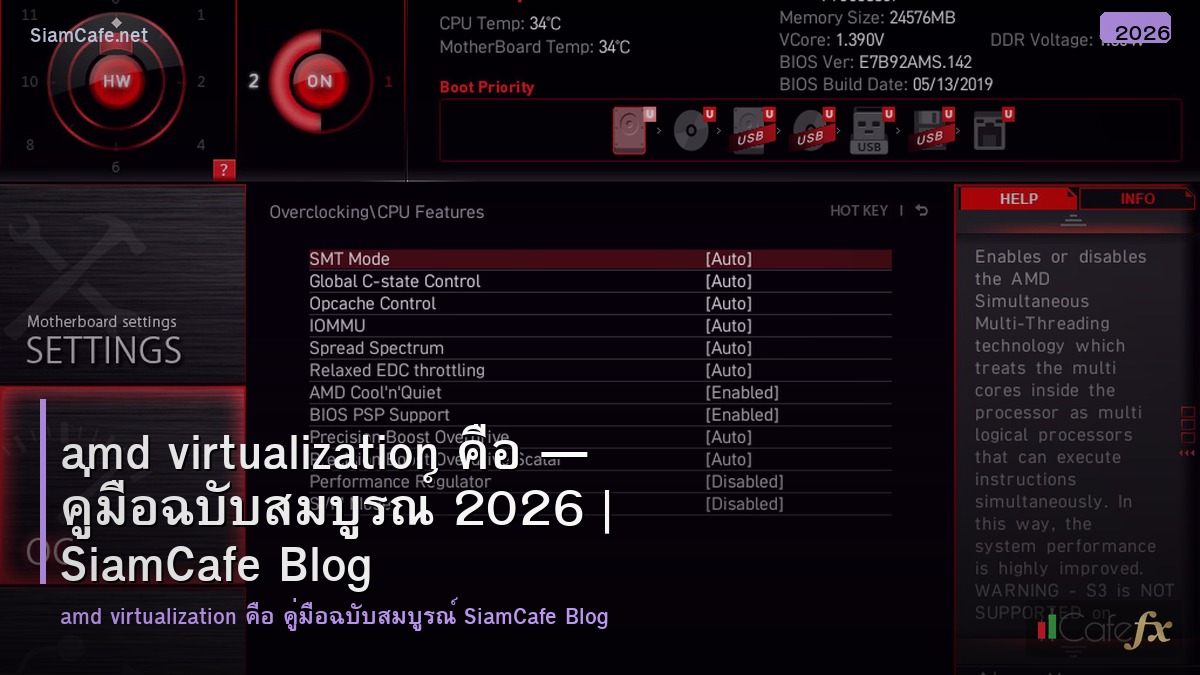
AMD Virtualization AMD-V
AMD Virtualization AMD-V SVM Hardware Virtualization Virtual Machine VirtualBox VMware Hyper-V Docker WSL2 BIOS CPU Hypervisor KVM QEMU
| Hypervisor | Type | ใช้กับ | AMD-V จำเป็น |
|---|---|---|---|
| VirtualBox | Type 2 | Desktop VM | แนะนำ (เร็วขึ้นมาก) |
| VMware Workstation | Type 2 | Desktop VM | จำเป็น |
| Hyper-V | Type 1 | Windows VM | จำเป็น |
| KVM/QEMU | Type 1 | Linux VM | จำเป็น |
| Docker | Container | Containers | จำเป็น (WSL2) |
| Android Emulator | Type 2 | Mobile Dev | จำเป็น |
เปิด AMD-V และ VM Setup
# === AMD-V BIOS & VM Setup ===


# ตรวจสอบ AMD-V บน Windows (PowerShell)

# systeminfo | findstr "Virtualization"

# ผลลัพธ์: Virtualization Enabled In Firmware: Yes


# ตรวจสอบบน Linux

# grep -c svm /proc/cpuinfo

# ผลลัพธ์ > 0 = AMD-V enabled

# หรือ

# lscpu | grep Virtualization

# ผลลัพธ์: Virtualization: AMD-V


# VirtualBox CLI — สร้าง VM

# VBoxManage createvm --name "Ubuntu-Server" \

#   --ostype Ubuntu_64 --register

#

# VBoxManage modifyvm "Ubuntu-Server" \

#   --cpus 4 --memory 4096 --vram 128 \

#   --nic1 nat --audio none \

#   --nested-hw-virt on

#

# VBoxManage createmedium disk \

#   --filename "Ubuntu-Server.vdi" \

#   --size 50000 --format VDI

#

# VBoxManage storagectl "Ubuntu-Server" \

#   --name "SATA" --add sata

#

# VBoxManage storageattach "Ubuntu-Server" \

#   --storagectl "SATA" --port 0 \

#   --type hdd --medium "Ubuntu-Server.vdi"

#

# VBoxManage startvm "Ubuntu-Server" --type headless


# KVM/QEMU บน Linux

# sudo apt install qemu-kvm libvirt-daemon-system

# sudo systemctl enable --now libvirtd

#

# # สร้าง VM

# virt-install \

#   --name ubuntu-server \

#   --ram 4096 --vcpus 4 \

#   --disk size=50 \

#   --os-variant ubuntu22.04 \

#   --cdrom /path/to/ubuntu.iso \

#   --network bridge=virbr0


from dataclasses import dataclass

from typing import List


@dataclass

class VMConfig:

    name: str

    os: str

    cpus: int

    ram_gb: float

    disk_gb: int

    network: str

    purpose: str


vms = [

    VMConfig("web-server", "Ubuntu 22.04", 2, 4, 50, "Bridge", "Web Application"),

    VMConfig("db-server", "Ubuntu 22.04", 4, 8, 200, "Bridge", "PostgreSQL Database"),

    VMConfig("dev-env", "Ubuntu 24.04", 4, 8, 100, "NAT", "Development"),

    VMConfig("windows-test", "Windows 11", 4, 8, 100, "NAT", "Testing"),

    VMConfig("docker-host", "Ubuntu 22.04", 4, 16, 200, "Bridge", "Container Host"),

]


print("=== Virtual Machines ===")

for vm in vms:

    print(f"  [{vm.name}] {vm.os}")

    print(f"    CPU: {vm.cpus} | RAM: {vm.ram_gb}GB | Disk: {vm.disk_gb}GB")

    print(f"    Network: {vm.network} | Purpose: {vm.purpose}")
Troubleshooting
# === Troubleshooting AMD-V ===


issues = {

    "VT-x/AMD-V not available": {

        "cause": "SVM Mode ไม่ได้เปิดใน BIOS",

        "fix": "เข้า BIOS > Advanced > CPU > SVM Mode > Enabled",

    },

    "Hyper-V conflict": {

        "cause": "Hyper-V เปิดอยู่ ชนกับ VirtualBox/VMware",

        "fix": "bcdedit /set hypervisorlaunchtype off แล้ว Restart",

    },

    "VM ช้ามาก": {

        "cause": "ไม่ได้เปิด Hardware Virtualization",

        "fix": "เปิด SVM + Nested Virtualization ใน VM Settings",

    },

    "Nested VM ไม่ทำงาน": {

        "cause": "Nested Virtualization ไม่ได้เปิด",

        "fix": "VBoxManage modifyvm VM --nested-hw-virt on",

    },

    "BSOD เมื่อเปิด VM": {

        "cause": "Driver conflict หรือ Hyper-V conflict",

        "fix": "Update VirtualBox/VMware + ปิด Hyper-V",

    },

}


print("Troubleshooting:")

for issue, info in issues.items():

    print(f"\n  [{issue}]")

    print(f"    Cause: {info['cause']}")

    print(f"    Fix: {info['fix']}")


# AMD CPU Feature Check

features = {

    "AMD-V (SVM)": "Hardware Virtualization พื้นฐาน",

    "AMD-Vi (IOMMU)": "I/O Virtualization สำหรับ GPU Passthrough",

    "SEV": "Secure Encrypted Virtualization เข้ารหัส VM Memory",

    "SEV-ES": "SEV Encrypted State เข้ารหัส CPU Registers",

    "SEV-SNP": "SEV Secure Nested Paging ป้องกัน Hypervisor",

    "NPT": "Nested Page Tables เร็วกว่า Shadow Paging",

}


print(f"\n\nAMD Virtualization Features:")

for feat, desc in features.items():

    print(f"  [{feat}]: {desc}")
เคล็ดลับ
- SVM: เปิด SVM Mode ใน BIOS เสมอ ถ้าใช้ VM
- SSD: ใช้ SSD สำหรับ VM Disk เร็วขึ้นมาก
- VirtIO: ใช้ VirtIO Driver สำหรับ Disk และ Network
- RAM: อย่า Overcommit RAM รวม VM ไม่เกิน RAM Host
- Hyper-V: ปิด Hyper-V ถ้าใช้ VirtualBox หรือ VMware
การนำความรู้ไปประยุกต์ใช้งานจริง

แหล่งเรียนรู้ที่แนะนำ ได้แก่ Official Documentation ที่อัพเดทล่าสุดเสมอ Online Course จาก Coursera Udemy edX ช่อง YouTube คุณภาพทั้งไทยและอังกฤษ และ Community อย่าง Discord Reddit Stack Overflow ที่ช่วยแลกเปลี่ยนประสบการณ์กับนักพัฒนาทั่วโลก
AMD Virtualization คืออะไร
AMD-V SVM Hardware Virtualization CPU จัดการ VM โดยตรง VirtualBox VMware Hyper-V Docker WSL2 เปิดใน BIOS
วิธีเปิด AMD-V ใน BIOS ทำอย่างไร
DEL/F2 เข้า BIOS Advanced CPU Configuration SVM Mode Enabled F10 Save Exit ตำแหน่งต่างตามยี่ห้อ Motherboard
AMD-V กับ Intel VT-x ต่างกันอย่างไร
หน้าที่เดียวกัน AMD-V สำหรับ AMD VT-x สำหรับ Intel รองรับ Hypervisor เหมือนกัน Performance ใกล้เคียง
ทำไม VM ช้ามาก
AMD-V ไม่เปิด RAM ไม่พอ Disk HDD ช้า CPU Core น้อย Hyper-V Conflict เปิด SVM ใช้ SSD VirtIO Driver
สรุป
AMD Virtualization AMD-V SVM BIOS VirtualBox VMware Hyper-V KVM QEMU Docker WSL2 Performance VirtIO SSD Hugepages Nested Virtualization GPU Passthrough IOMMU SEV